How to Set Up Two-Factor Authentication (2FA)
Protect your store by enabling Two-Factor Authentication (2FA). Use a one-time password authenticator app on your mobile or computer for a second l...
You can create a Jumpseller account and log in to your store with your Google account or your Apple account. Click Continue with Google or Continue with Apple, confirm your account and you’re in, with no extra password to remember.
Both buttons are available on:
Go to the Jumpseller login page and click Continue with Google or Continue with Apple.
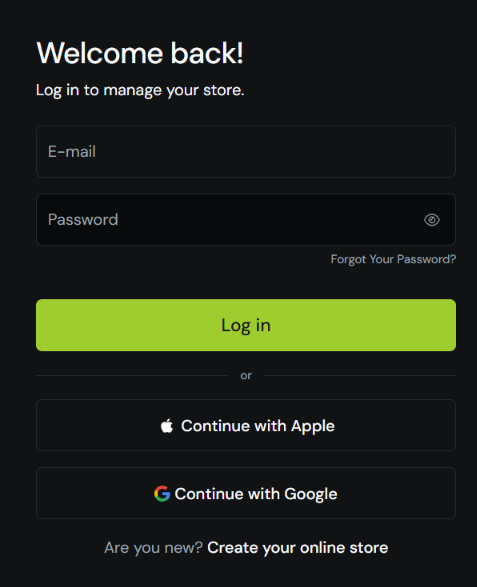
Confirm the account you want to use. If you are not logged in to Google or Apple in your browser, you will be asked for your email and password first.
That’s it. Choose the store you want to manage. If your account doesn’t have a store yet, you go straight to creating one.
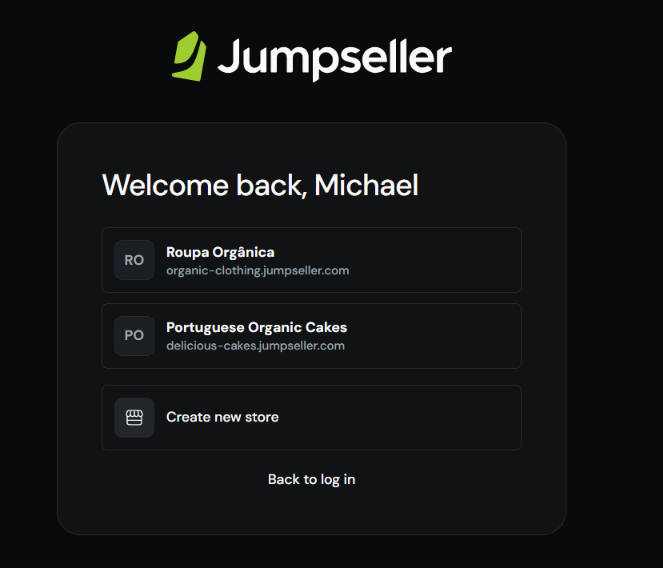
Your Google or Apple account must use the same email address as your Jumpseller account. If it uses a different email, you will see the message “There is no account for this Google email” (or “Apple email”). In that case, log in with your email and password, or with the account that matches your Jumpseller email.
If you already have a Jumpseller account with the same email as your Google or Apple account, the first time you use Continue with Google or Continue with Apple we link it to your Jumpseller account automatically. From then on, you can log in with Google, with Apple (if linked) or with your email and password.
Administrator accounts work the same way: any team member whose Jumpseller account email matches their Google or Apple account can log in with it.
When you sign in with Apple for the first time, Apple may offer to hide your email and share a private relay address (ending in @privaterelay.appleid.com) instead.
On the sign-up page, click Continue with Google or Continue with Apple.
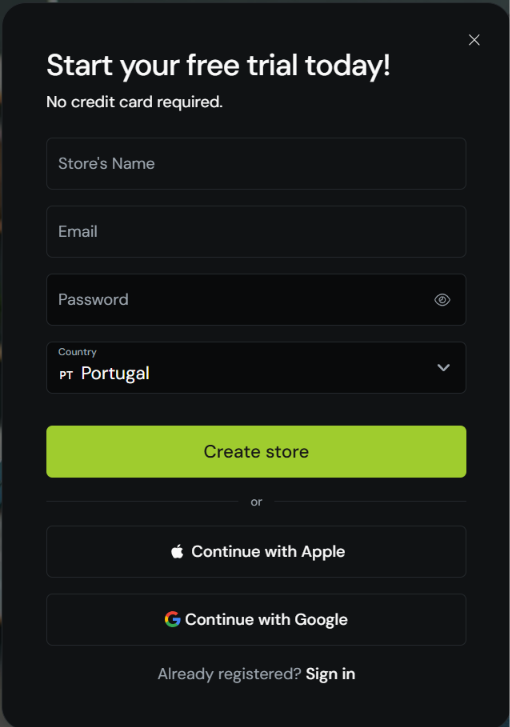
Confirm the account you want to use.
We create your Jumpseller account with your name and email. Your email is already verified by Google or Apple, so you don’t need to confirm it.
Continue with the store setup as usual.
If there is already a Jumpseller account with that email, we won’t create a new one. You will see a message asking you to log in instead.
Logging in with Google or Apple does not replace Two-Factor Authentication (2FA). If your account has 2FA enabled, after confirming your Google or Apple account you still need to enter the code from your authenticator app before accessing your store.
If your account doesn’t have 2FA yet, you may be invited to set it up after logging in. We recommend enabling it to keep your store secure.
An account created with Continue with Google or Continue with Apple has no password. You can always keep logging in with Google or Apple, but you can also set a password to log in with your email:
Log in to your Admin panel.
At the bottom left on the sidebar, click Accounts and then click on your account.
In the Password field, click the edit button, enter your new password twice and save.
Because your account has no password yet, you won’t be asked for a current password. You can also use Forgot Your Password? on the login page to receive an email and create one.
If you signed up with your email but never confirmed it, logging in with Google or Apple confirms it. For your security, any password and Two-Factor Authentication (2FA) set before that are removed, and other active sessions are closed. Right after logging in, we offer you to set a new password (optional), and you can enable 2FA again from your account settings.
Not at the moment. Logging in with Google or Apple only works when the email of that account is the same as your Jumpseller account email. If you sign up with a different email, you will create a separate Jumpseller account.
No. This option is for logging in to your Jumpseller account and admin panel. It does not change how your customers log in to your store yet, but we plan to bring these logins to your store’s customers in the future.
No. We only receive your name and email address to identify you. We don’t get your password or access to any other data in your Google or Apple account.
Start your free 7-day trial. No credit card required.